Effortlessly Setting Up Your NeoDeck with Denon DJ Controllers
Discover how to seamlessly integrate NeoDeck with Denon DJ Controllers for an unparalleled DJing experience.
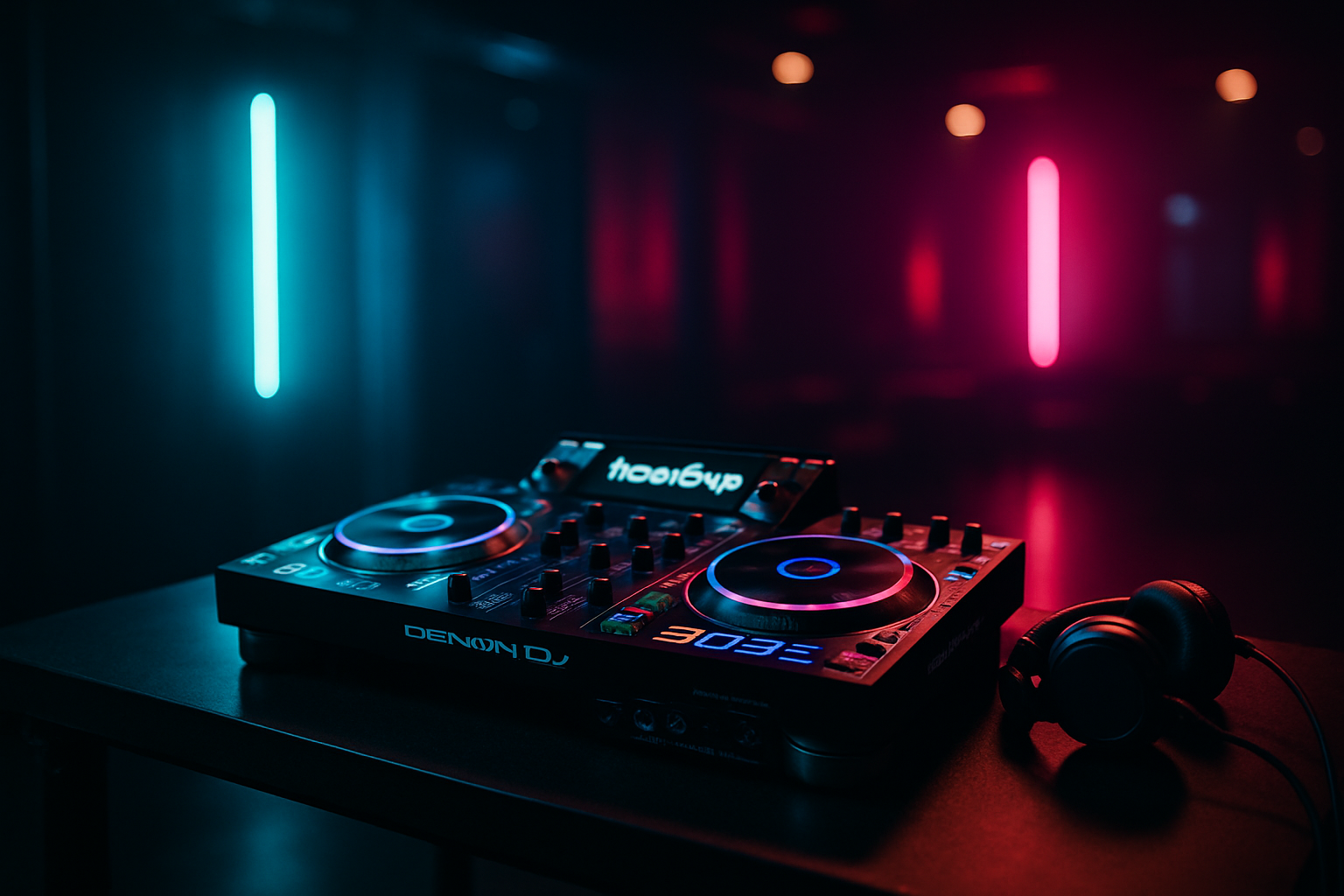
Introduction to NeoDeck and Denon DJ Controllers
In the world of DJing, where precision and reliability are critical, the NeoDeck offers an innovative solution tailored for professional use. Designed to replace cumbersome laptops, the NeoDeck is a compact, fanless mini-computer featuring a 10-inch IPS touchscreen. It boots directly into DJ software in under eight seconds, ensuring you're ready to perform almost instantly. Pairing the NeoDeck with Denon DJ controllers can elevate your performance to new heights. In this guide, we’ll walk you through setting up your NeoDeck with Denon controllers, unlocking a seamless DJing experience.
Understanding Your Equipment
Before diving into the setup process, it’s crucial to familiarize yourself with the components you’ll be working with. The NeoDeck is a standalone DJ computer offering dual stereo outputs and a USB-C interface that ensures compatibility with all major DJ controllers, including those from Denon. Meanwhile, Denon DJ controllers are known for their robust build and advanced features like touch-sensitive jog wheels and high-resolution displays. Models such as the Denon DJ SC6000 Prime or the MCX8000 are commonly used for their reliability and performance.
Initial Setup and Connections
Setting up the NeoDeck with your Denon DJ controller involves a few straightforward steps. Begin by ensuring both devices are powered off to avoid any connectivity issues:
- Power Connection: Connect your NeoDeck to a reliable power source using its dedicated power adapter.
- USB-C Connection: Use a high-quality USB-C cable to link your NeoDeck with the Denon DJ controller. This connection facilitates both data and audio transmission.
- Audio Output Setup: Connect the NeoDeck’s audio outputs to your PA system or speakers using suitable cables. Ensure the Master output is correctly connected for optimal sound distribution.
Once all connections are secure, power on both the NeoDeck and the Denon controller.
Configuring DJ Software on NeoDeck
The NeoDeck comes pre-loaded with DJ software on a customized Linux-based OS, optimized for real-time performance. Here’s how to configure it for use with Denon controllers:
- Software Selection: Upon booting, the NeoDeck will auto-launch the integrated DJ software. Confirm it supports your Denon model.
- Controller Mapping: Most Denon controllers have pre-configured mappings within the software. Navigate to the settings menu and select your specific Denon model to ensure correct mapping.
- Audio Configuration: In the audio settings, confirm that the NeoDeck’s dual stereo outputs are recognized and assigned correctly for both the Master and Booth/Monitor outputs.
Optimizing Performance
To get the most out of your NeoDeck and Denon setup, consider these optimization tips:
"Performance optimization is essential for a flawless DJ set. Ensure all components are updated and configured correctly."
- Firmware Updates: Regularly check for firmware updates for both your NeoDeck and Denon controller to take advantage of new features and stability improvements.
- Latency Settings: Adjust the latency settings within the DJ software to balance responsiveness with stability.
- Custom MIDI Mapping: For advanced users, customizing MIDI mappings can tailor the controller’s functions to your specific style.
Troubleshooting Common Issues
Even with the best equipment, occasional hiccups can occur. Here’s how to address common issues:
- Connection Issues: If the controller isn’t recognized, try reconnecting the USB-C cable and ensure all drivers are up to date.
- Audio Distortion: Check audio settings for mismatched sample rates or buffer sizes that might cause distortion.
- Software Glitches: Restarting the NeoDeck can resolve most software-related issues, thanks to its quick boot time.
Conclusion
Integrating the NeoDeck with Denon DJ controllers provides a streamlined, efficient setup that can significantly enhance your DJ performances. With its compact design and robust capabilities, the NeoDeck is an ideal companion for professional DJs looking to simplify their setup without compromising on performance. By following the steps outlined in this guide, you'll ensure a harmonious interaction between your equipment, allowing you to focus on what truly matters – delivering an unforgettable musical experience.
For more information and to pre-order the NeoDeck, visit NeoDeck Store
Ready to upgrade your DJ setup?
Join thousands of DJs on the waitlist for NeoDeck — the purpose-built DJ computer.
Get Early Access